Few things are more frustrating than plugging in your smartphone, leaving it on the desk for an hour, and returning only to find that the battery percentage has barely nudged upward. Modern smartphones are designed to replenish their energy rapidly, often moving from zero to fifty percent in a matter of 20 to 30 minutes.
When your device suddenly starts charging at a snail’s pace, it disrupts your day, delays your plans, and leaves you wondering whether your battery is dying or if the phone itself is breaking down.
The good news is that a sudden drop in charging speed is rarely a permanent hardware catastrophe. In most cases, the culprit is a minor physical obstruction, a degraded power accessory, an environmental factor, or a temporary software glitch.
Before you spend hundreds of dollars on a professional repair or buy a brand-new phone, there are clear, effective troubleshooting strategies you can perform right at home.
This comprehensive guide explores the primary reasons behind sudden slow charging and details five practical, step-by-step methods to restore your device to its peak charging performance.
What Causes a Phone to Charge Slowly All of a Sudden?

To understand how to resolve Phone Charging So Slow, it helps to look at the basic mechanism of how power travels into your phone. Charging is a system composed of five interconnected components: the power source (wall outlet or port), the charging adapter, the USB cable, the phone’s charging port, and the internal lithium-ion battery managed by the operating system.
If any single link in this chain experiences a failure, resistance, or bottleneck, the overall charging speed will drop significantly to protect the circuit and prevent heat damage.
[Wall Socket / Power Source] ➔ [Power Adapter] ➔ [USB Cable] ➔ [Charging Port] ➔ [Battery & OS]
When slow charging happens suddenly—rather than gradually over several months—it typically indicates an abrupt change in one of these links.
For instance, micro-fractures inside a cheap charging cable can instantly limit current delivery. Pocket lint crammed into the charging port can reach a threshold where physical connectors no longer meet flush. Alternatively, a recent operating system update or intensive background task might cause your phone to draw power as quickly as the charger supplies it.
Identifying which part of the chain is causing the bottleneck is the secret to fixing the problem quickly.
5 Proven Ways to Fix Slow Phone Charging
1. Inspect and Clean the Charging Port
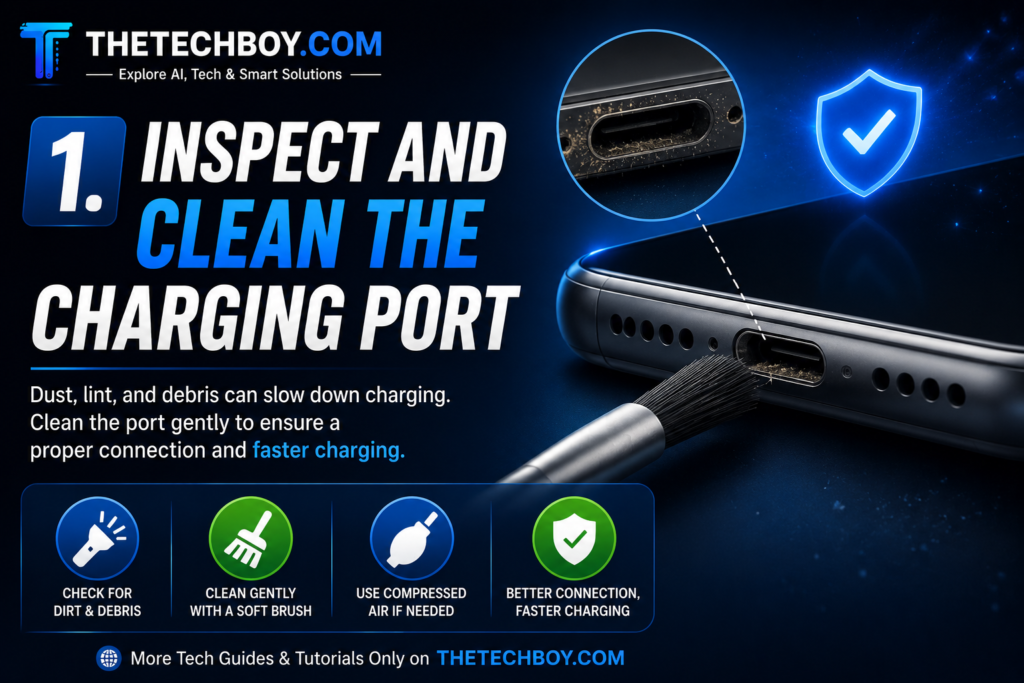
One of the most frequent yet overlooked causes of sudden slow charging is physical contamination inside your device’s charging port.
Every time you slide your smartphone into your jeans, purse, or jacket pocket, small particles of lint, dust, and debris collect inside the USB-C or Lightning port. Over time, inserting the charging cable compresses this debris into a hard layer at the bottom of the socket.
This build-up prevents the metallic pins on the cable connector from making full, solid contact with the internal pins of the port, leading to high electrical resistance or intermittent power transfer.
Step-by-Step Port Cleaning Method
- Power Off the Device: Turn off your smartphone completely to prevent short-circuiting the sensitive electrical contacts during cleaning.
- Illuminate the Port: Grab a bright flashlight or use another phone’s torch to inspect the inside of the port closely. You will likely see a dense, grayish mass of packed lint compressed against the back wall.
- Use a Non-Metallic Tool: Never insert metal objects like paperclips, safety pins, or needle tips into the charging port, as they can permanently bend or break the delicate electrical pins. Instead, use a wooden toothpick, a plastic floss pick, or a small wooden precision tool.
- Gently Sweep the Sides: Insert the tip gently into the port, hugging the inner walls, and sweep in a soft circular motion to hook the packed lint. Pull the debris out gently without applying lever force against the central pin array.
- Clear Residual Dust: Use a short burst of compressed air held at a safe distance to blow out loose particles. Avoid using your breath, as moisture from your mouth can deposit micro-droplets on the electronic contacts.
- Test the Connection: Plug your cable back in. It should snap into place with a firm click rather than feeling spongy or loose.
2. Swap Out the Charging Cable and Adapter
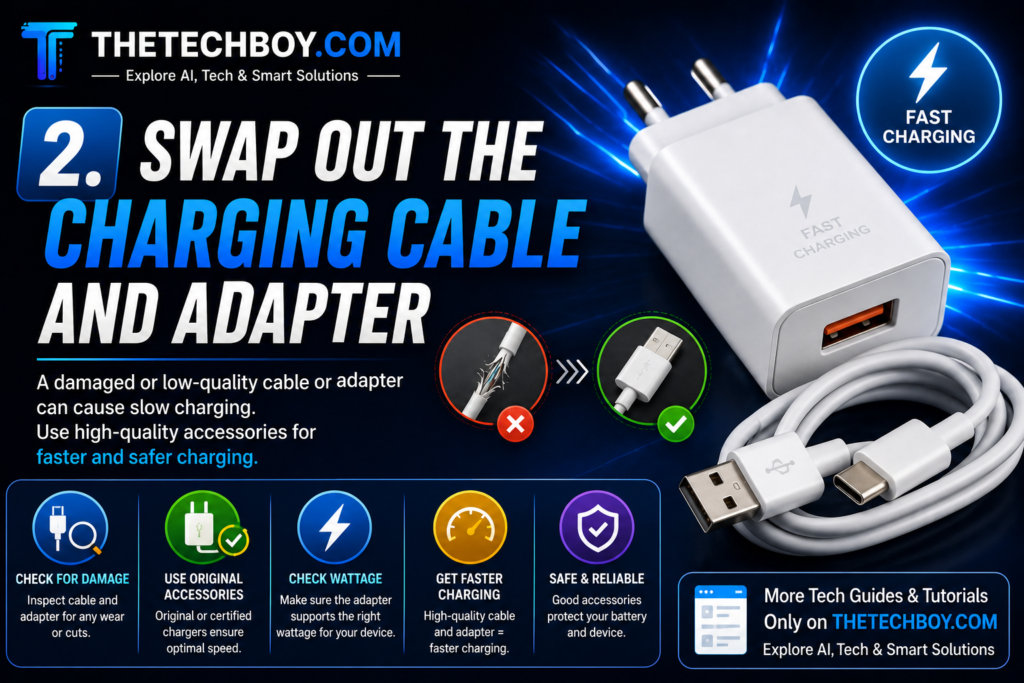
If the charging port is pristine, the next logical step is evaluating your charging hardware. Cables endure significant physical stress—they are bent, twisted, stepped on, tightly wound, and yanked out of walls.
Even if a cable shows no visible exterior damage like fraying or exposed copper wire, the ultra-thin copper strands inside may have fractured, restricting the flow of electric current.
Similarly, wall adapters can degrade internally over time due to electrical surges or heat stress. Furthermore, using mismatched accessories can significantly reduce performance. Modern smartphones require specific voltage and current protocols (such as Power Delivery or Quick Charge standards) to activate fast-charging features.
If you pair a fast-charging phone with a low-wattage wall brick (like an old 5W adapter) or an uncertified third-party cable, your phone will default to a slow, basic trickling charge rate to protect its battery safety circuits.
Standard Wall Adapter Output (5W)  ➔  Slow Trickle Charge (~2-3 Hours)
Power Delivery (PD) Adapter (20W+) ➔  Fast Charging (~30-50 Mins)
How to Diagnose Cable and Adapter Issues
- Test Isolation: Connect your phone to a completely different wall adapter and cable combination that you know works at full speed on another device.
- Isolate Cable vs. Brick: Swap the cable while keeping the same adapter, then swap the adapter while using the original cable. This process isolates which specific accessory has failed.
- Avoid Weak USB Ports: Plugs connected to laptop USB ports, old car dashboards, or low-cost power banks rarely supply enough wattage for modern smartphones. Always test using a direct, high-output wall outlet socket.
- Use Certified Accessories: Ensure your replacement accessories are certified by your device manufacturer (MFi certified for Apple, or USB-IF certified for Android devices) to guarantee protocol compatibility.
3. Check for Thermal Throttling and Environmental Factors
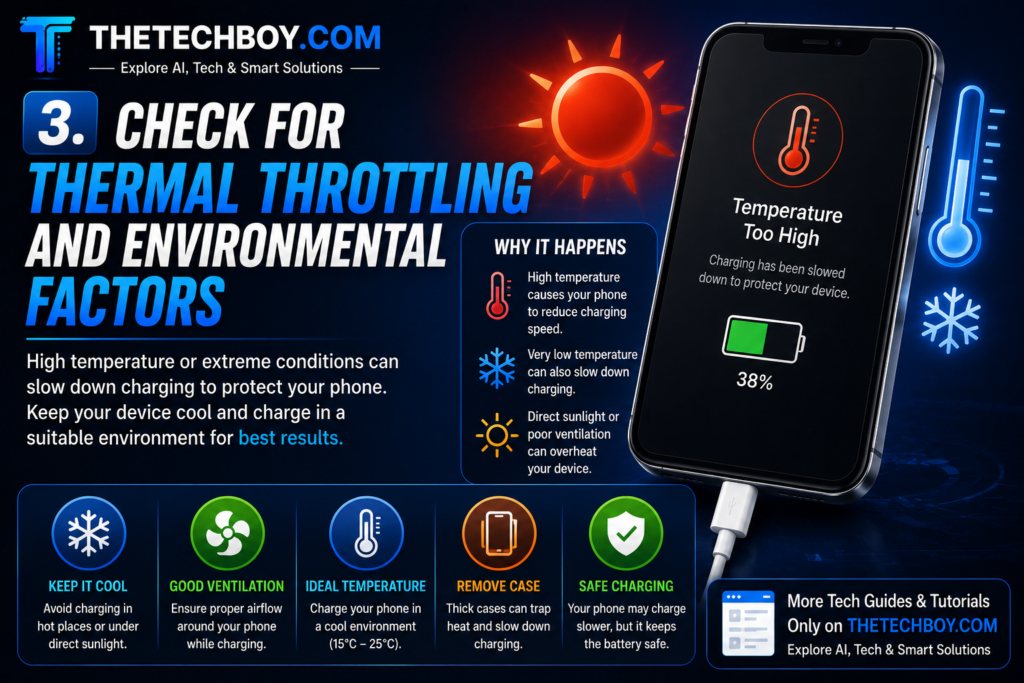
Smartphones contain built-in thermal protection mechanisms designed to prevent lithium-ion batteries from catching fire or deteriorating rapidly. Lithium-ion chemistry is sensitive to heat; charging a battery inherently generates internal heat, and if the ambient room temperature is already elevated, the total temperature of the device can spike quickly.
When the internal system detects that the battery or CPU temperature has exceeded safe thresholds, it triggers a hardware protection mechanism known as thermal throttling. The phone’s power management controller automatically chokes back the charging current—sometimes slowing charging speeds by 70% to 80%—until the device cools down to safe operational limits.
High Temperature Detected ➔ Thermal Safety Throttling Engaged ➔ Power Intake Restricted
Steps to Counter Thermal Throttling
- Remove Heavy Protective Cases: Thick rubber, rugged silicone, or leather phone cases trap heat around the glass and metal enclosure, preventing heat dissipation during high-speed charging.
- Relocate Your Phone: Never charge your phone on soft, heat-retaining surfaces like beds, pillows, couch cushions, or directly under bedsheets. Place the phone flat on a hard, cool surface like a wooden desk or glass table.
- Avoid Sunlight and Warm Vehicles: Keep your device away from direct sunlight, windows, and warm car dashboards.
- Let the Device Cool Down: If your phone feels hot to the touch, unplug it immediately, turn it off, and allow it to sit in a cool, shaded environment for 15 minutes before plugging it back into the charger.
4. Close Background Apps and Avoid Using the Phone While Charging
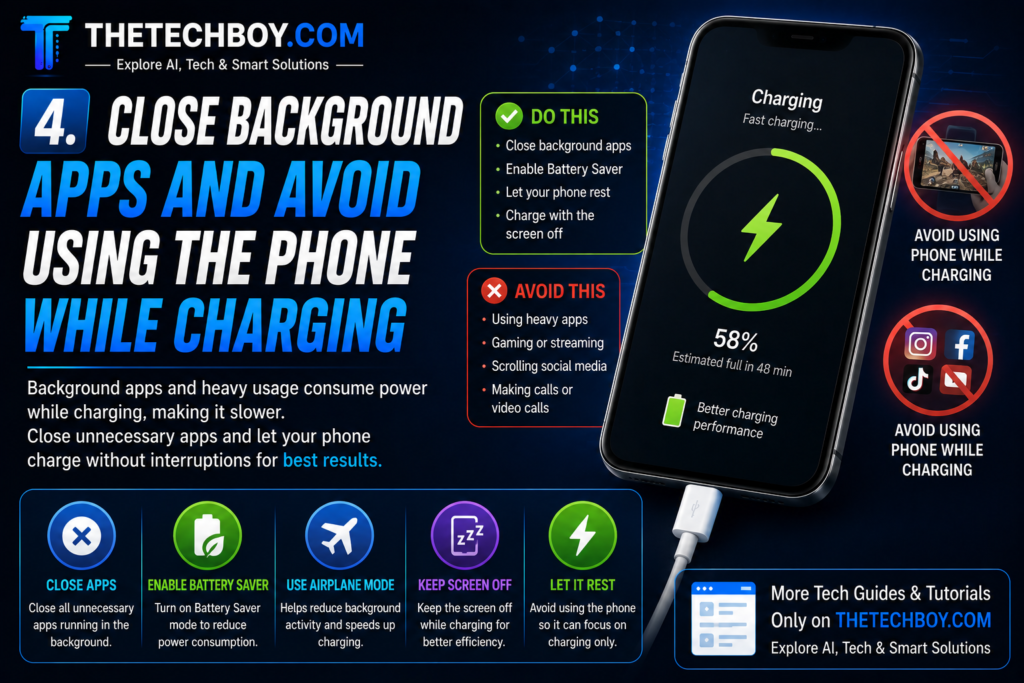
A simple mathematical formula determines how fast your battery charges: Net Charging Speed = Power Supplied by Charger – Power Consumed by Device.
If your wall adapter supplies 15 Watts of power, but your device is concurrently burning 12 Watts of power running intensive background processes, the battery will only store a net total of 3 Watts. This creates the illusion that your charger is broken, when in reality, your device’s power consumption is rivaling its power intake.
Using your device for graphics-intensive mobile gaming, video streaming, running GPS navigation, or recording high-definition video while plugged in strains the system. It forces the battery to discharge and charge simultaneously while generating dual heat streams from both the screen/processor and the incoming electrical current.
    [ High Intake Power ] ──┐
                            ├─► Net Gain: Very Slow Charge
    [ High Screen/CPU Use ] ──┘
Best Practices for Battery Management During Charging
- Close Active Applications: Force-close power-hungry apps running in the background, such as social media feeds, live location-sharing services, and online games.
- Turn On Airplane Mode: Enabling Airplane Mode temporarily disables wireless radios (Cellular 5G/LTE, Wi-Fi, Bluetooth, and GPS) that constantly drain power in the background. This simple action can speed up overall charging times significantly.
- Keep the Display Off: The display panel is often the single most power-hungry component on any modern smartphone. Put the screen to sleep and let the device rest quietly while charging.
- Avoid Heavy Usage: Resist the urge to hold and use the phone while it is attached to the cable.
5. Resolve Software Glitches and Check Battery Health
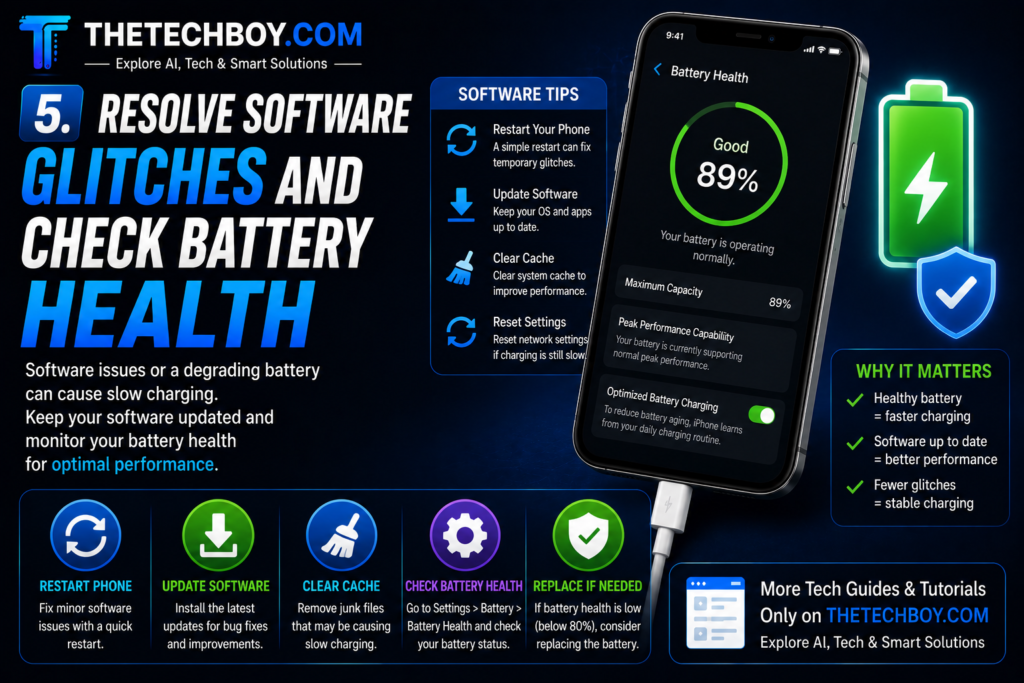
Modern smartphones rely on sophisticated software algorithms to monitor electrical currents, manage temperature levels, and regulate charging speeds dynamically. Occasionally, operating system bugs, background system hangs, or corrupted cache files can disrupt the software routines responsible for managing fast-charging protocols.
Furthermore, all rechargeable lithium-ion batteries are consumable components that degrade chemically over time. After about 500 to 800 full charge cycles (roughly two to three years of daily use), a battery’s total chemical capacity decreases, and its internal electrical resistance increases. This natural aging process causes the battery to take longer to charge, hold less energy, and discharge faster.
Software Diagnostics and Recovery Steps
- Perform a Force Restart: A simple system reboot clears temporary cache files, closes hung system services, and resets power-management loops.
- For Android: Press and hold the Power Button and Volume Down Button simultaneously for 10–15 seconds until the device reboots.
- For iPhone: Press and quickly release Volume Up, press and quickly release Volume Down, then press and hold the Side Power Button until the Apple logo appears.
- Update the Operating System: Check for pending software updates. System updates frequently contain bug fixes, power-management optimization tweaks, and thermal threshold calibrations.
- Assess Battery Health Metrics:
- iPhone Users: Navigate to Settings > Battery > Battery Health & Charging. Check the Maximum Capacity percentage. If it falls below 80%, the battery has degraded significantly and requires professional service replacement.
- Android Users: Go to Settings > Battery or use native diagnostic tools (such as Samsung Members) to evaluate battery status. You can also install reputable diagnostics software to measure charging voltage and real-time current intake.
Comparison Table: Troubleshooting Slow Charging Issues
| Symptom / Behavior | Most Likely Cause | Primary Fix Action | Time to Resolve |
| Cable feels loose or wobbly inside port | Compressed lint/debris in port | Clean carefully with wooden toothpick | 5 Minutes |
| Phone charges slowly on wall, fine on computer | Damaged wall adapter brick | Replace with certified PD fast charger | Instant (upon swap) |
| Phone gets excessively hot while charging | Thermal throttling / thick case | Remove case; let phone cool down | 15-20 Minutes |
| Charging rate drops after system update | OS background bug / system glitch | Force restart phone & update apps | 5 Minutes |
| Battery percentage jumps or drains fast | Degraded battery health (aging) | Schedule official battery replacement | Service Visit |
When Should You Seek Professional Repair?
If you have carefully cleaned the charging port, swapped both the cable and adapter for certified fast-charging accessories, allowed the device to cool down, closed all background apps, and performed a complete force restart without seeing any improvement, the problem may be hardware-based.
Under these circumstances, the issue likely stems from one of two internal hardware faults:
- Damaged Charging Port Assembly: Physical wear, bent internal connector pins, or moisture exposure can damage the internal USB assembly, preventing power transfer.
- Failing Battery or Power Management IC: The internal power management integrated circuit (PMIC) on the logic board or the lithium-ion cell itself may have suffered a permanent hardware failure.
In such cases, avoid using harsh chemicals, metal tools, or third-party home repair kits. Take your smartphone to an authorized service center or a certified repair professional to have the hardware diagnosed and repaired safely.
Summary Checklist to Keep Your Phone Charging Fast
To maintain optimal charging speeds and extend the lifespan of your smartphone battery, follow these best practices:
- Clean your charging port gently every few months to prevent dust accumulation.
- Use high-quality, certified fast-charging cables and wall bricks matching your phone’s recommended wattage.
- Charge your phone on hard, cool surfaces away from direct sunlight.
- Avoid heavy gaming, streaming, or multi-tasking while connected to power.
- Keep your phone’s operating system updated to maintain power-management fixes.
By systematically working through these five troubleshooting steps, you can pinpoint the issue, fix your slow charging speed, and get your phone powered up quickly without unnecessary stress or expense.